> ## Documentation Index
> Fetch the complete documentation index at: https://opentools.mintlify.site/llms.txt
> Use this file to discover all available pages before exploring further.
# Quickstart
> Discover and use tools via Model Context Protocol
OpenTools makes it easy to discover and use tools via Model Context Protocol (MCP).
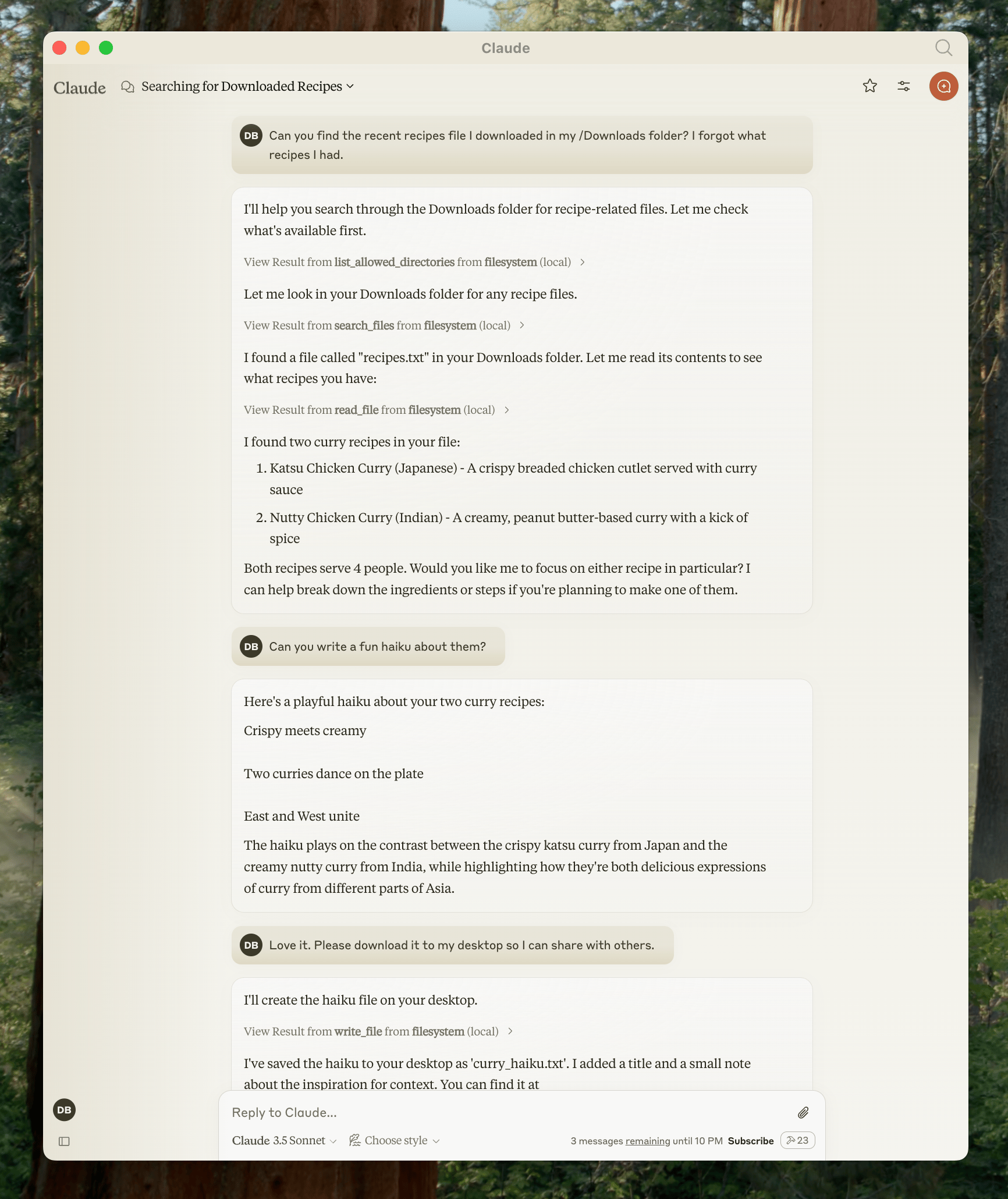
Let's walk through adding the [filesystem](https://opentools.com/registry/filesystem-ref) server to Claude Desktop. This lets Claude to read and write files on your local filesystem (with your permission).
## Prerequisites
Before you begin, make sure you have:
* [Node.js](https://nodejs.org/) version 18.0 or higher
* npm (comes with Node.js) version 7.0 or higher
* [Claude Desktop](https://claude.ai/download) installed
To verify your installations, run this in your terminal:
```bash theme={null}
npm --version
```
## Setup Instructions
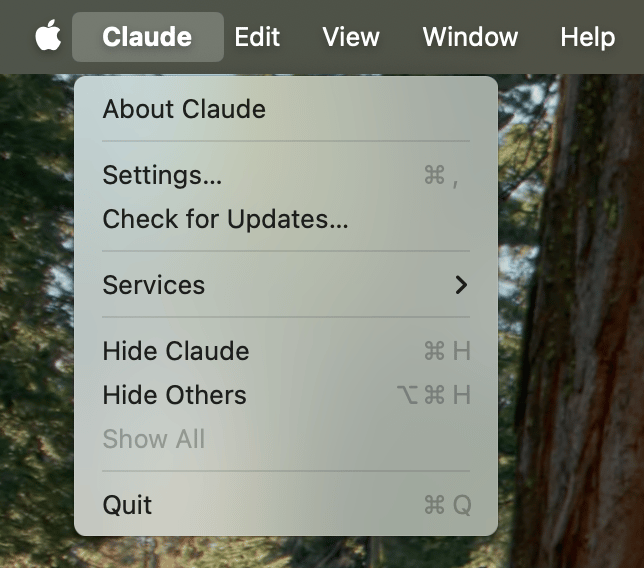
Next, open Claude's menu bar settings (not the in-app settings) and select "Settings...":
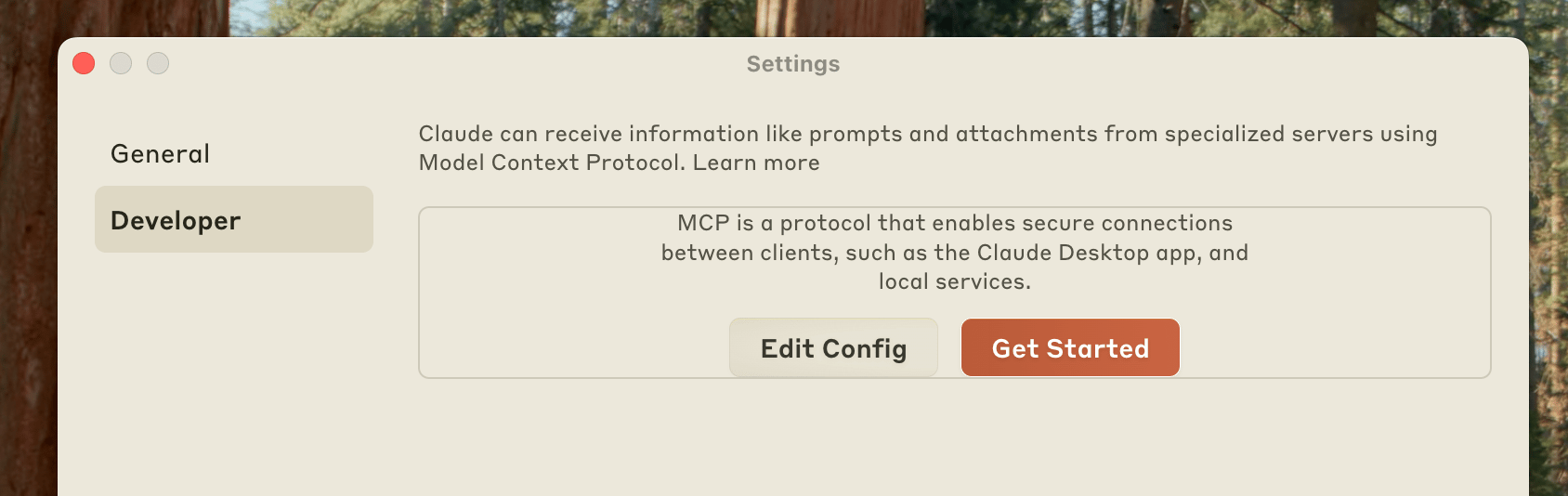
Click on "Developer" in the lefthand bar of the Settings pane, and then click on "Get Started":
Run this terminal command to install the filesystem server:
```bash theme={null}
npx opentools i filesystem-ref
```
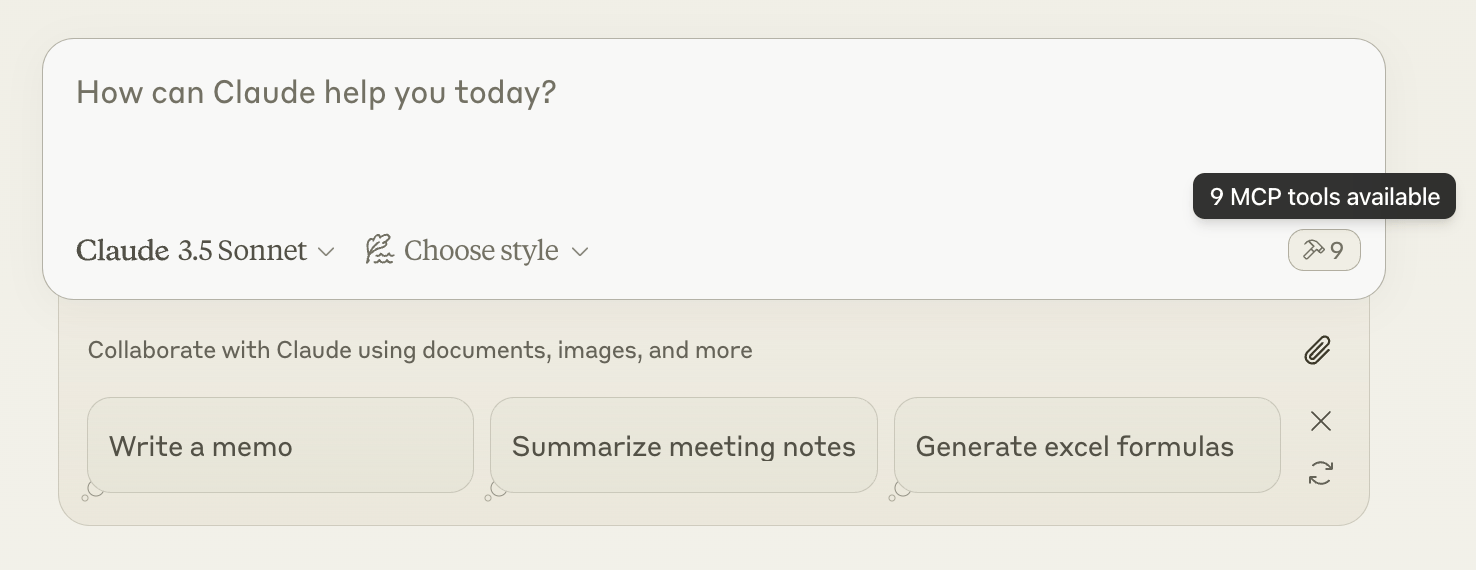
This will take you through a series of questions where you specify which filepaths Claude is allowed to access. Once you've done that, OpenTools will restart your Claude application. This time you should see a new hammer icon in the bottom right corner of the input box:
## Using the Filesystem Tool
That's it! Try asking Claude about files in your allowed directories. Here are some examples:
* Can you write a poem and save it to my desktop?
* What are some work-related files in my downloads folder?
* Can you take all the images on my desktop and move them to a new folder called "Images"?
If you find `filesystem-ref` useful, try many more tools like it in the OpenTools [registry](https://opentools.com/registry?category=cli).